
This section shows all the reminders available in the system.
Task Reminders #
The Reminders section in NexaPortal helps users make sure they never miss a task or duty. On this page, you can view, filter, and manage all task-related reminders.
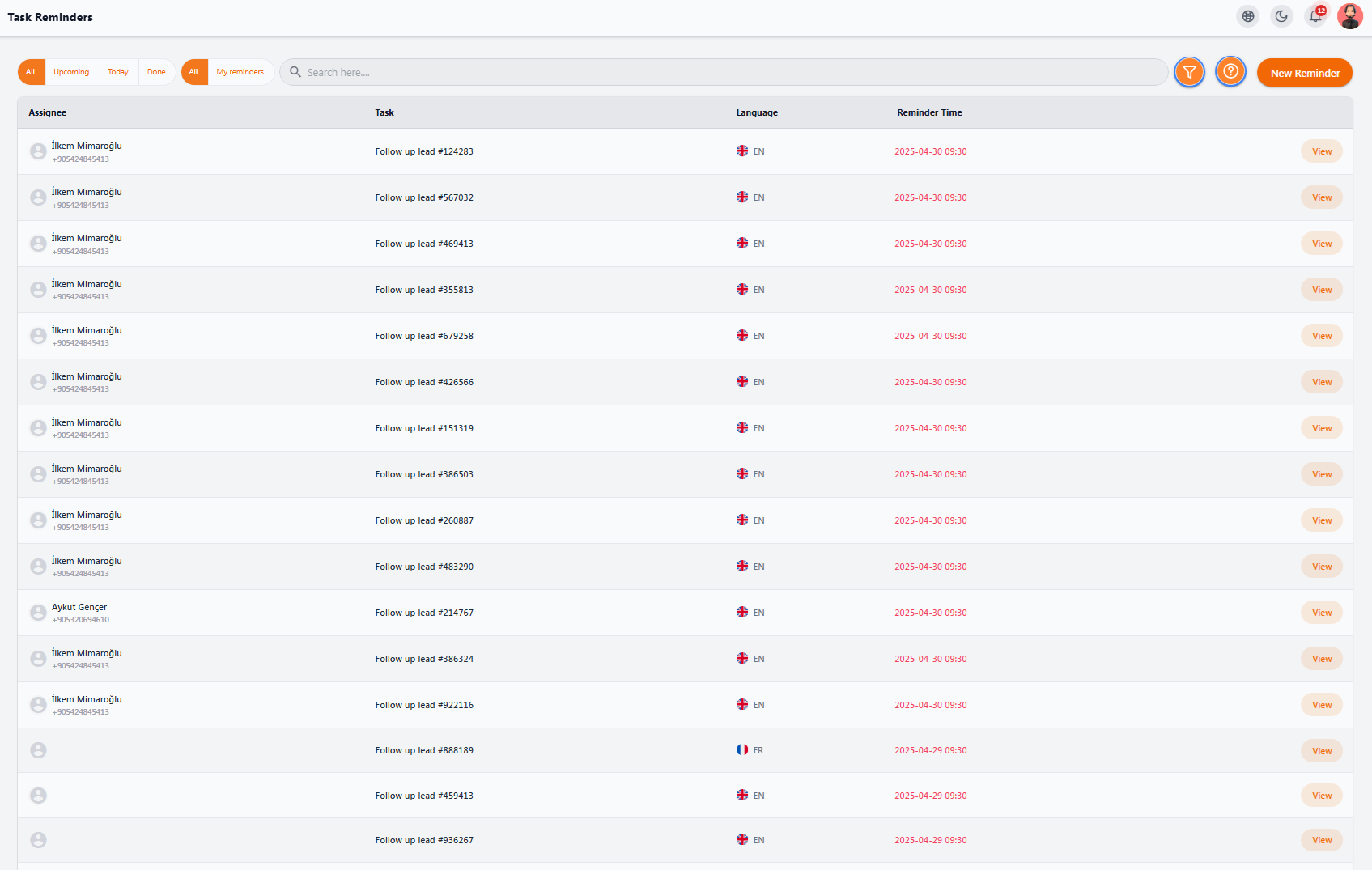
📋 Main Columns in the Reminders List #
| Column | Description |
|---|---|
| Assignee | The person the reminder is assigned to |
| Task | Type of task or description (e.g., “Follow up lead #123456”) |
| Language | The required language to contact the lead or patient |
| Reminder Time | The scheduled time for the reminder to activate |
| View | Button to view details and go directly to the related task |
🧰 Filters & Categories #
At the top of the page, there are several filters for quickly categorizing reminders:
-
All: Shows all reminders
-
Upcoming: Reminders scheduled for the future
-
Today: Only today’s reminders
-
Done: Tasks that are completed or closed
-
My Reminders: Reminders assigned to the current user
🔍 Additional Features #
-
Search Bar: You can search for specific reminders by lead number or task title.
-
Advanced Filter Icon (right side of the search bar): Allows filtering by time, language, status, etc.
➕ Creating a New Reminder #
By clicking the New Reminder button at the top right, you can set a reminder for a specific task and choose the exact date and time.
💡 Tip: Reminders are a powerful tool for consistent follow-up especially useful for sales, support teams, and managers dealing with a high volume of tasks.
Lead Reminders #
The Lead Reminders section in NexaPortal is designed for automated and continuous follow-up of leads that require regular contact. The system schedules reminders so no active or important lead is missed.
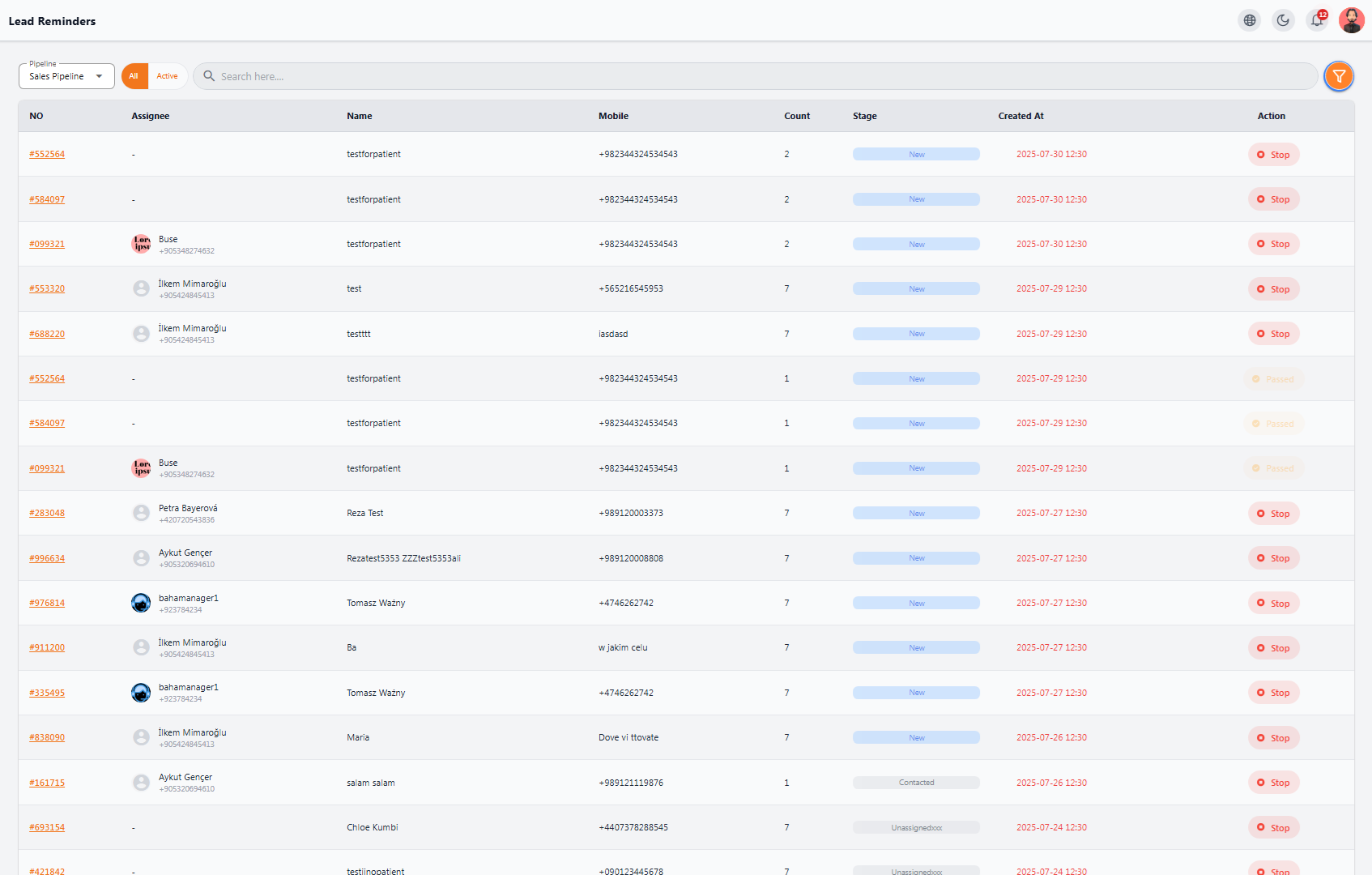
🧾 Lead Reminder Table Columns #
| Column | Description |
|---|---|
| NO | Lead number (clickable for viewing lead details) |
| Assignee | The person assigned to the lead |
| Name | Patient or lead name |
| Mobile | Contact number |
| Count | Number of reminders (e.g., 7 means the lead has been followed up 7 times) |
| Stage | Current stage of the lead (e.g., New, Contacted, Qualified) |
| Created At | Start date of the first reminder |
| Action | Button to stop or check the status (Stop / Passed) |
🧰 Filters #
Top of the page includes tools to filter the reminder list:
-
Pipeline: Select the type of sales pipeline (e.g., Sales Pipeline)
-
All / Active: Show all reminders or only active ones
-
Search: Quickly find by name, mobile number, or lead number
-
Advanced Filter (orange funnel icon): Filter by date, count, stage, etc.
🚦 Reminder Status #
In the Action column, there are three main statuses:
-
Stop: Reminder is active and can be stopped
-
Passed: Reminder has ended and is no longer active
-
(Blank): Reminder has been canceled or deleted
💡 Tip: Lead reminders are tailored for sales, support, and management teams to make sure unanswered, new, or sensitive-stage leads are followed up automatically — increasing conversion rates.


