
Leads Reports #
The Leads Reports section in NexaPortal provides managers with a powerful tool for evaluating sales team performance, examining lead acquisition sources, and analyzing the customer conversion process. This module is designed to be fully visual and easy to understand, providing you with a clear overview of the path from lead acquisition to final sale at a glance.
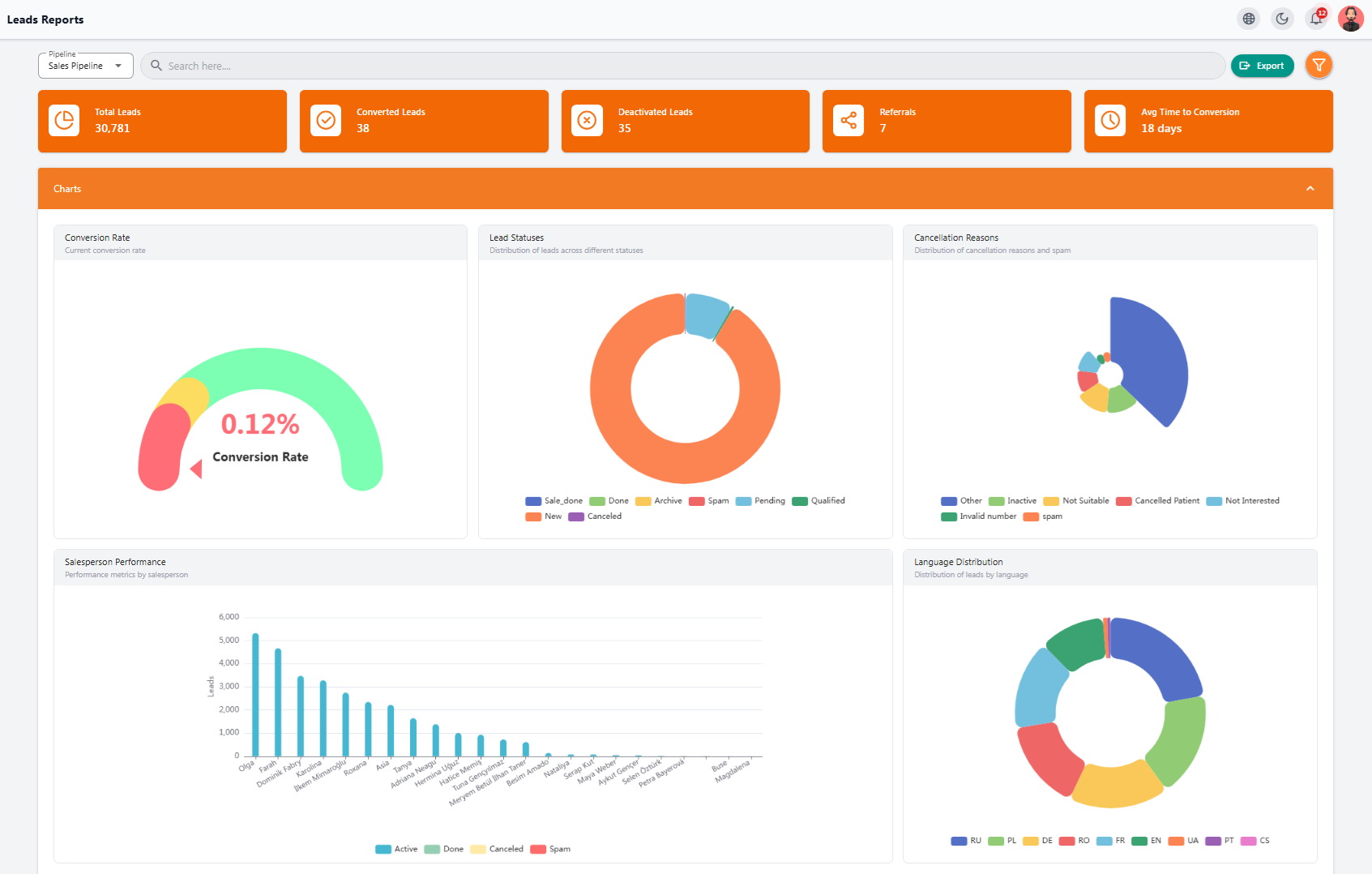
🔸 Key Stats at the Top #
-
Total Leads: Total number of registered leads
-
Converted Leads: Leads that resulted in a final sale
-
Deactivated Leads: Inactive or canceled leads
-
Referrals: Referred leads
-
Avg Time to Conversion: Average time taken to convert a lead into a customer
📈 Analytical Charts #
-
Conversion Rate: Success rate of converting leads
-
Lead Statuses: Overview of the current status of all leads
-
Cancellation Reasons: In-depth analysis of why leads failed to convert
-
Salesperson Performance: Comparison of the activity and performance of sales team members
-
Language Distribution: Language breakdown of leads to determine target markets
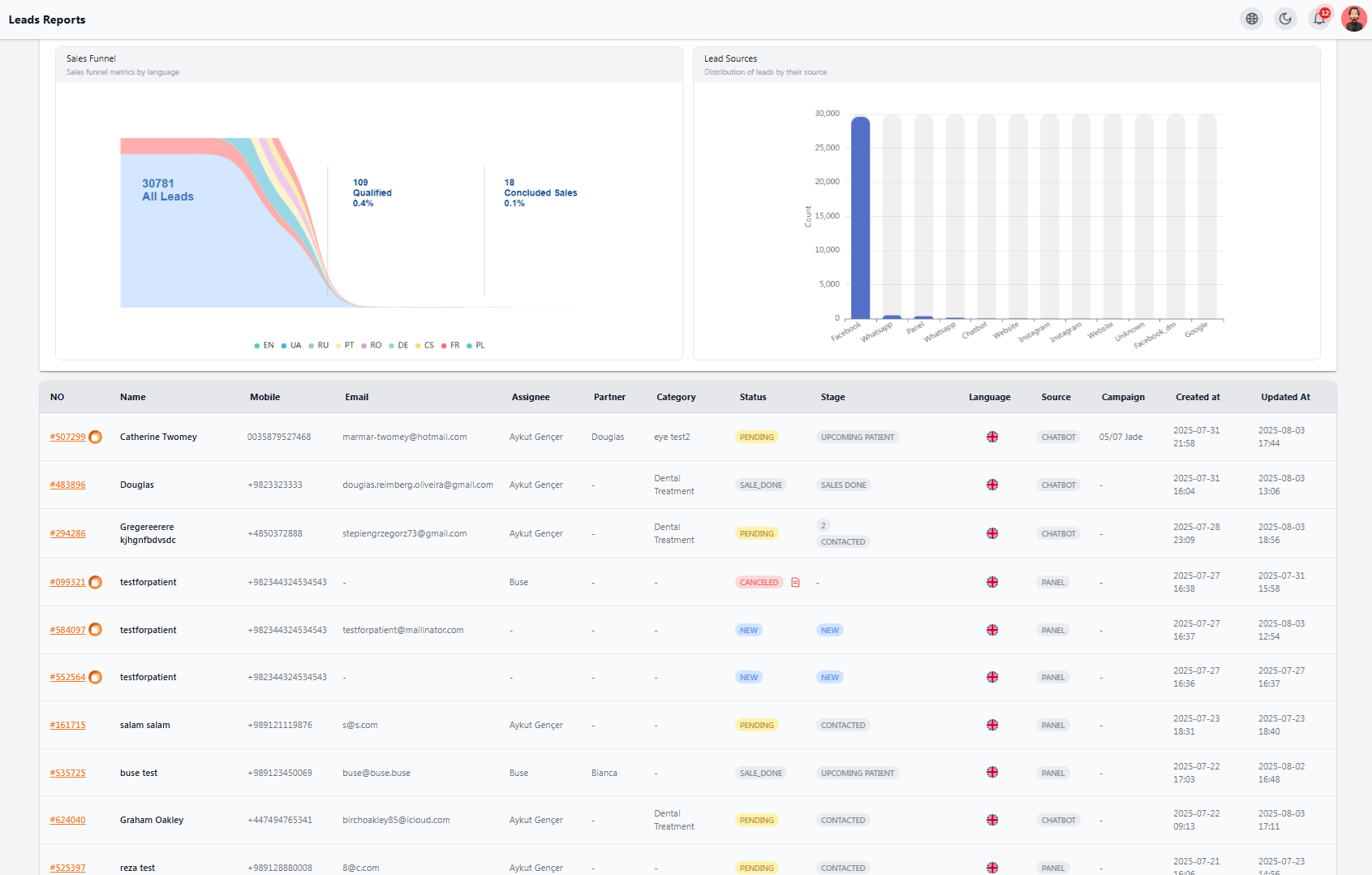
🔻 Sales Funnel #
The funnel chart shows the path of leads from entry to final sale, broken down by language.
📊 Lead Sources #
Shows the channels through which leads entered the system, such as WhatsApp, Facebook, website, Google, etc.
📋 Leads Table #
At the bottom of the page, a complete list of leads with:
-
Name, contact number, email
-
Salesperson, category, status, and stage
-
Language, source, campaign, creation, and update dates
#
🔍 This section is designed for detailed analysis, professional reporting, and quick decision-making, ensuring your sales process is always on the optimal path.
Tasks Reports #
The Tasks Reports section in NexaPortal provides managers or sales managers with a smart and functional tool to track, manage, and monitor all tasks recorded in the system. This module helps you quickly view the status of tasks, the person responsible for each task, and the type of activity, enabling you to take quick action if necessary.
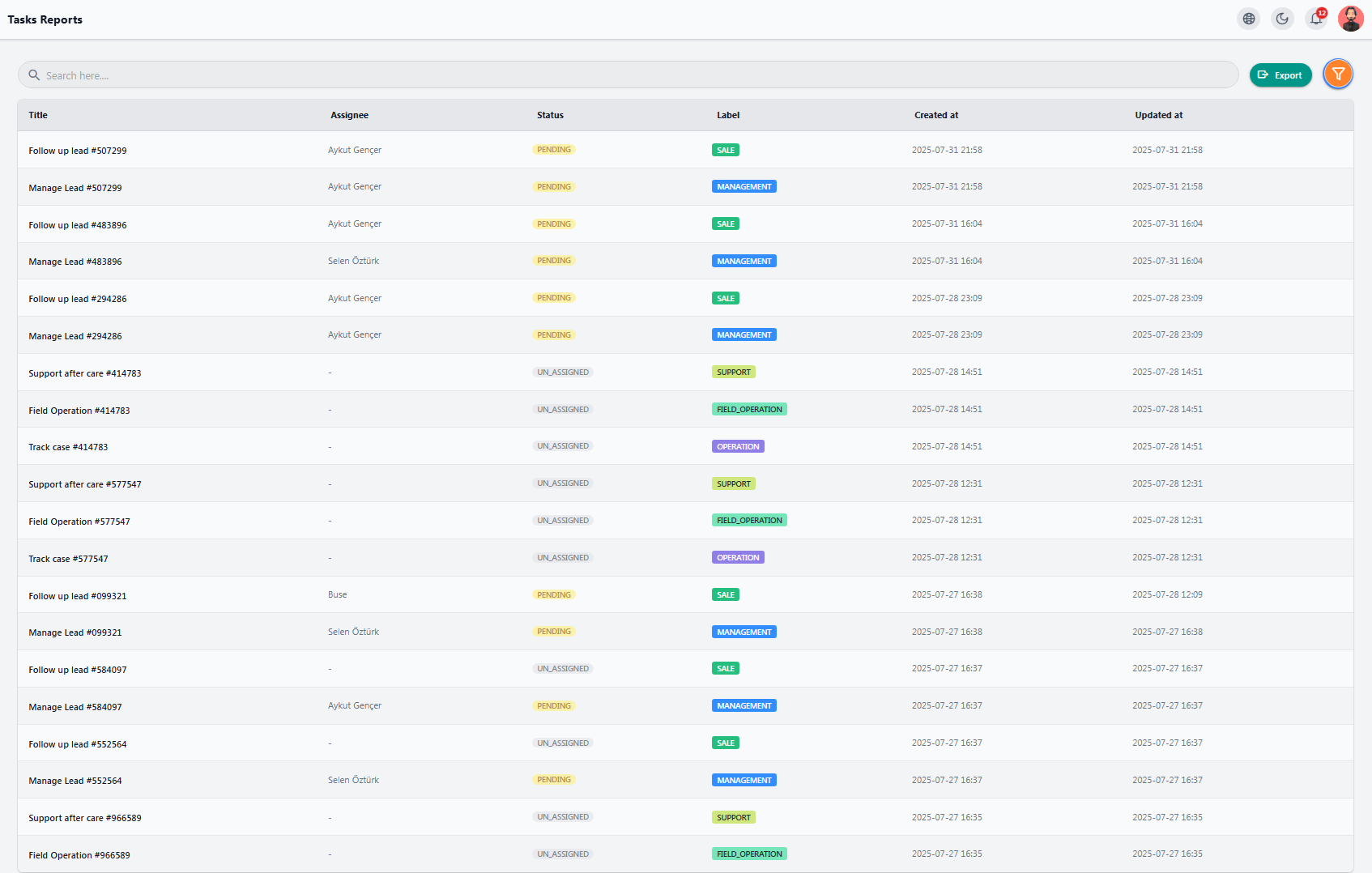
📌 Table Information #
-
Task Title: Short description of the task
-
Assignee: Person responsible for the task
-
Status: Task status (e.g., Pending, In Progress, etc.)
-
Label: The role for which the task was created
-
Created at: Date and time the task was recorded
-
Updated at: Time of the last update made on the task
🔍 This report allows you to categorize tasks based on filters, export data if needed, and ensure all tasks are completed.
💰 Sales Reports #
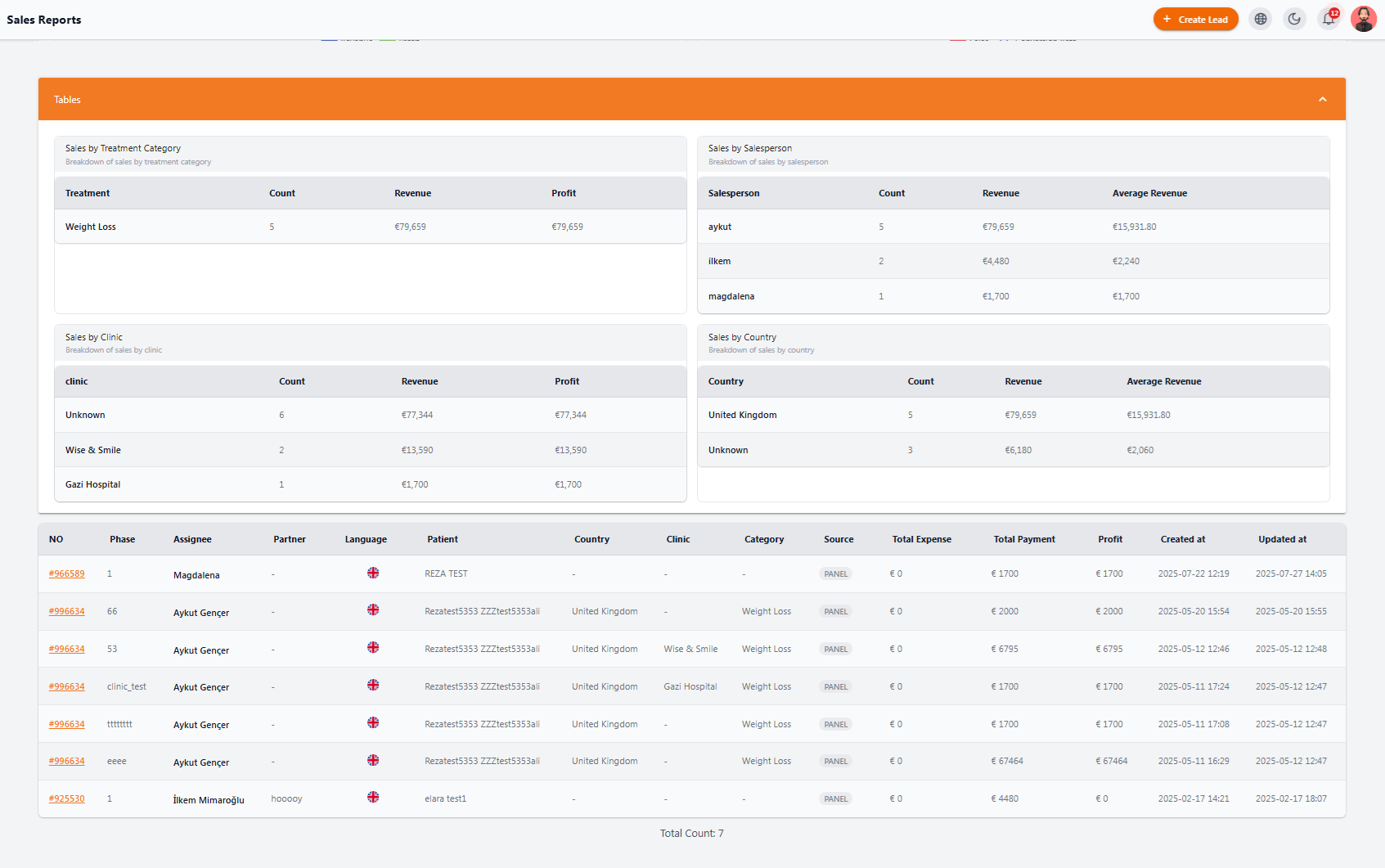
The Sales Reports section gives you a clear and comprehensive overview of your organization’s sales performance. It helps you accurately monitor and analyze profit, revenue, average sales, and the overall performance of your sales team
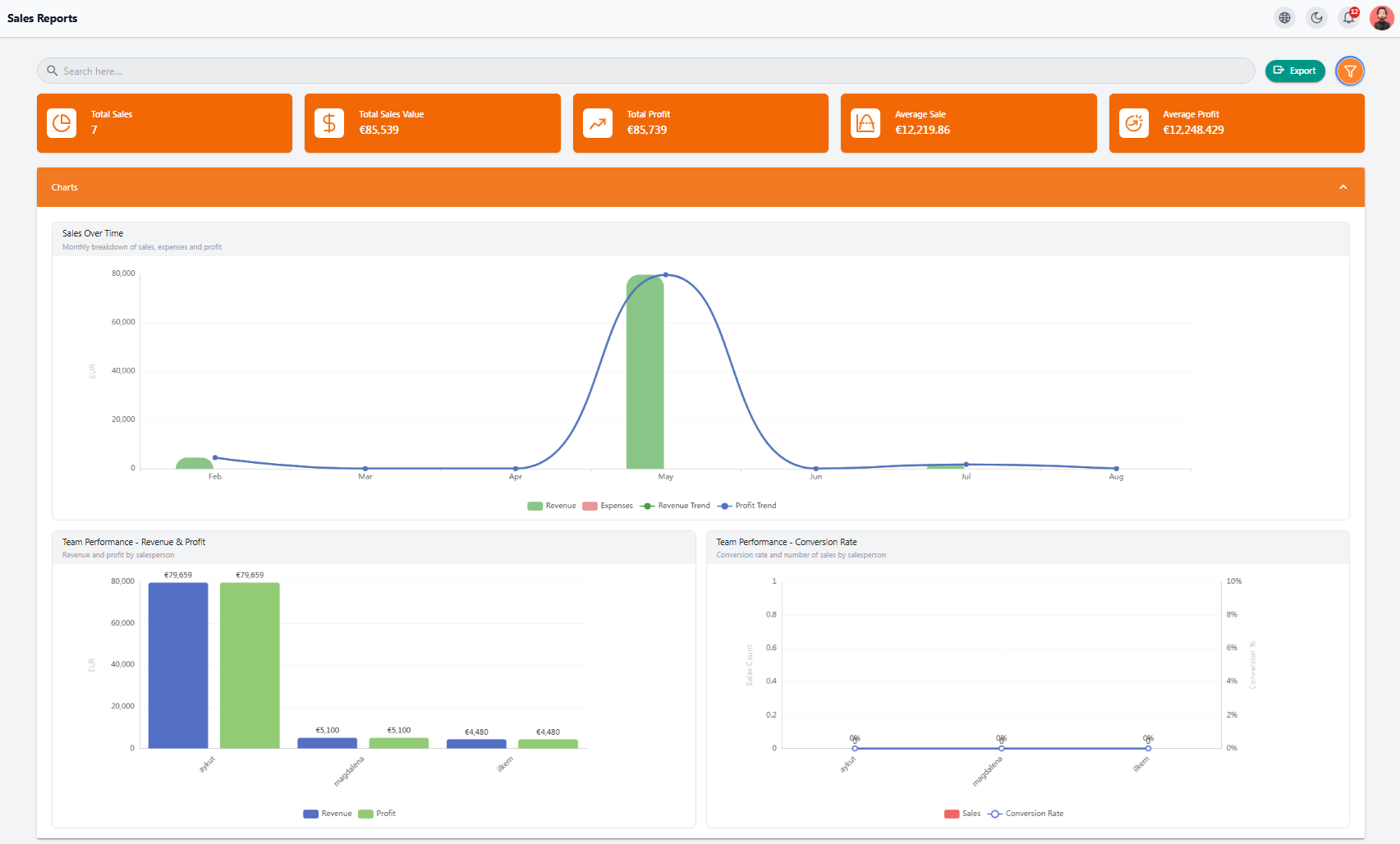
🔸 Key Metrics #
-
Total Sales: Number of all completed sales
-
Total Sale Value: Total revenue generated
-
Total Profit: Total profit earned
-
Average Sale: Average value per sale
-
Average Profit: Average profit per sale
📅 Statistical Charts #
-
Sales Over Time:
Line chart showing revenue and profit trends on a monthly basis -
Team Performance:
Compare revenue and profit for each salesperson -
Conversion Rate:
Percentage of leads converted into final sales for each sales agent
📋 Statistical Tables #
-
By Treatment Category
-
By Salesperson
-
By Clinic
-
By Country
These insights help you identify profitable sources and make smarter business decisions
🧾 Sales Details List #
At the bottom of the page, you can view a detailed list of all sales, including:
-
Sales phase, patient, country, clinic
-
Payment amount, final profit, and relevant dates
🔍 You can also use the Export button to download this data and include it in management reports
🧾 Financial Reports #
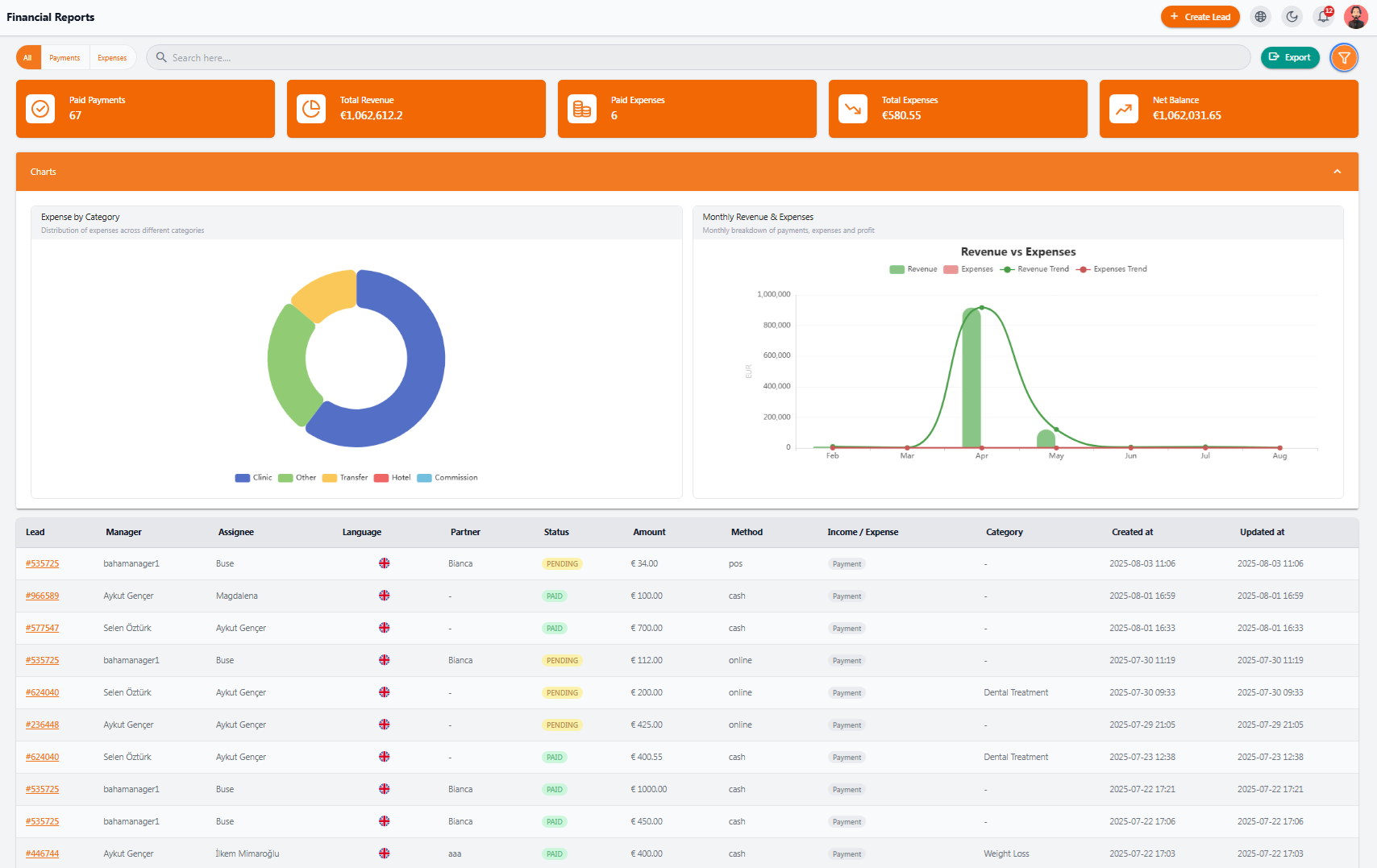
The Financial Reports section is one of the most essential financial management tools in the NexaPortal. It allows you to analyze income, expenses, and your net financial balance in real time
🔸 Key Metrics #
-
Paid Payments: Number of confirmed payments
-
Total Revenue: Total income generated
-
Paid Expenses: Number of expenses paid
-
Total Expenses: Sum of all expenses
-
Net Balance: Final financial balance
📊 Charts #
-
Expense by Category:
View expense distribution across categories such as Clinic, Hotel, Transfer, Commission, and others -
Monthly Revenue & Expenses:
A line chart comparing income and expenses across different months
📋 Transaction Table #
At the bottom of the page, all recorded financial transactions are displayed with detailed data including:
-
Related lead
-
Manager and handler
-
Status (Paid / Pending)
-
Amount and payment method
-
Transaction type (Income / Expense)
-
Income/expense category
-
Creation and last update dates
All fields are filterable for quick access and review
📤 You can also export the data for use in management or accounting reports easily!


